


Enter a Formula Edit a Formula Operator Precedence Copy/Paste a Formula Insert a Function
1.
A formula is an expression which calculates the value of a cell. Functions are predefined formulas and are already available in Excel.
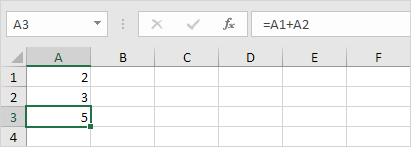
For example, cell A3 below contains a formula which adds the value of cell A2 to the value of cell A1.

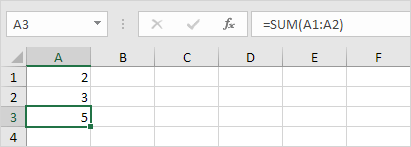
For example, cell A3 below contains the SUM function which calculates the sum of the range A1:A2.

1. Select a cell.
2. To let Excel know that you want to enter a formula, type an equal sign (=).
3. For example, type the formula A1+A2.
Tip: instead of typing A1 and A2, simply select cell A1 and cell A2.
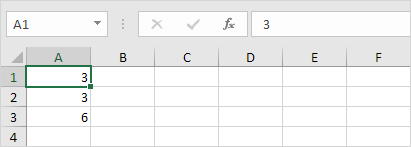
4. Change the value of cell A1 to 3.
 Excel automatically recalculates the value of cell A3. This is one of Excel's most powerful features!
 1. To edit a formula, click in the formula bar and change the formula.

2. Press Enter.

 First, Excel performs multiplication (A1 * A2). Next, Excel adds the value of cell A3 to this result.
Another example,

First, Excel calculates the part in parentheses (A2+A3). Next, it multiplies this result by the value of cell A1.
1.
A formula is an expression which calculates the value of a cell. Functions are predefined formulas and are already available in Excel.
For example, cell A3 below contains a formula which adds the value of cell A2 to the value of cell A1.
For example, cell A3 below contains the SUM function which calculates the sum of the range A1:A2.
Enter a Formula
To enter a formula, execute the following steps.1. Select a cell.
2. To let Excel know that you want to enter a formula, type an equal sign (=).
3. For example, type the formula A1+A2.
Tip: instead of typing A1 and A2, simply select cell A1 and cell A2.
4. Change the value of cell A1 to 3.
Edit a Formula
When you select a cell, Excel shows the value or formula of the cell in the formula bar.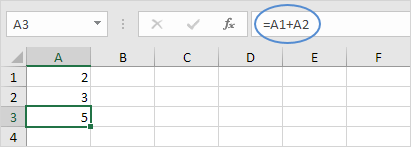
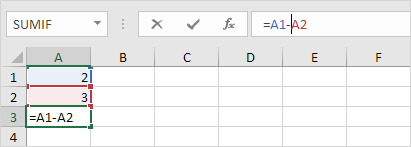
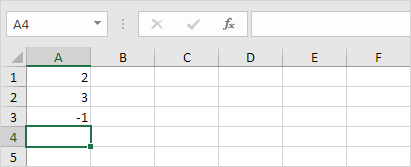
2. Press Enter.
Operator Precedence
Excel uses a default order in which calculations occur. If a part of the formula is in parentheses, that part will be calculated first. It then performs multiplication or division calculations. Once this is complete, Excel will add and subtract the remainder of your formula. See the example below.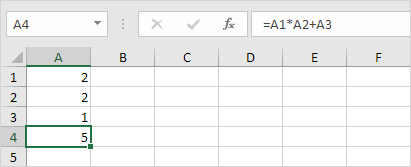
Another example,
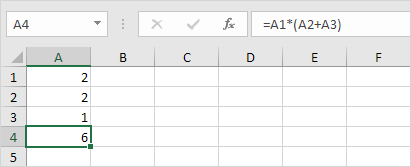
First, Excel calculates the part in parentheses (A2+A3). Next, it multiplies this result by the value of cell A1.

No comments :
Post a Comment